You send a request to an API, receive a response, and try to read it using JavaScript. Instead of getting the data you expected, the browser displays an error:
SyntaxError: Unexpected token '<', "<!DOCTYPE "... is not valid JSONOr perhaps you see:
SyntaxError: Unexpected end of JSON inputThese errors can be frustrating because the message does not always explain what went wrong with the original request.
A JSON parse error usually means that the input provided to a JSON parser does not follow valid JSON syntax. However, the problem is not always malformed JSON. Sometimes the application receives HTML, an empty response, an already-parsed object, or incomplete data instead.
In this guide, you will learn how to identify common JSON parsing errors, understand what their messages mean, and fix them with practical JavaScript examples.
If you already have a JSON document that needs checking, you can use our free JSON Validator to inspect its syntax before using it in your application.
What Is a JSON Parse Error?
JSON stands for JavaScript Object Notation. It is a lightweight data format used to exchange structured information between applications, websites, servers, and APIs.
Before an application can work with JSON text as a JavaScript object, the text must be parsed.
For example, this is valid JSON:
{
  "name": "Alex",
  "role": "Developer",
  "active": true
}
JavaScript can convert it into an object using JSON.parse():
const jsonText = '{"name":"Alex","role":"Developer","active":true}';

const user = JSON.parse(jsonText);

console.log(user.name);
Output:
AlexNow imagine the input contains a trailing comma:
const jsonText = '{"name":"Alex","role":"Developer",}';

const user = JSON.parse(jsonText);
This produces a parsing error because standard JSON does not allow a comma after the final property.
The rules for JSON syntax are described in RFC 8259, the specification for the JSON data interchange format.
The important point is that JavaScript object syntax and JSON syntax are not identical. Something that looks acceptable in a JavaScript file may still be invalid JSON.
How to Read a JSON Parse Error Message
A parser error is not just a failure notification. It often provides a clue about the actual problem.
For example, consider:
Unexpected token '<' in JSON at position 0The parser encountered a character it could not accept at the beginning of the input.
The position and unexpected character can help narrow down the cause.
Here are some common error patterns:
| Error message or pattern | Possible cause |
|---|---|
Unexpected token < | HTML received instead of JSON |
| Unexpected end of JSON input | Empty or incomplete input |
| Expected property name | Invalid object key or trailing comma |
Unexpected token u | Input may contain undefined |
| Bad control character | Unescaped character inside a string |
| Unexpected non-whitespace character after JSON | Extra content after a complete JSON value |
Exact wording varies between browsers and JavaScript engines. Treat these messages as diagnostic clues rather than fixed rules.
1. Fix “Unexpected Token < in JSON”
This is one of the most confusing JSON parsing errors for developers.
It often appears when an application expects an API response in JSON format but receives an HTML document.
For example:
SyntaxError: Unexpected token '<'Why does this happen?
HTML documents commonly begin with a tag such as:
<!DOCTYPE html>The first character is <, which is not a valid starting character for the JSON value your application expects.
Common reasons
Your request might be receiving:
- A 404 page because the API endpoint is incorrect.
- A 500 error page generated by the server.
- A login page because authentication failed.
- An HTML response from a proxy or hosting service.
- A redirect to the website homepage instead of the API endpoint.
How to diagnose it
Do not immediately change your JSON parser. First inspect what the server actually returned.
async function getData() {
  const response = await fetch("/api/users");

  const rawText = await response.text();

  console.log("HTTP status:", response.status);
  console.log("Response body:", rawText);

  if (!response.ok) {
    throw new Error(`Request failed: ${response.status}`);
  }

  const data = JSON.parse(rawText);

  return data;
}
This example reads the response as text so you can inspect the actual content before parsing it.
If the output begins with HTML, investigate the endpoint, authentication, redirect, or server response instead of trying to repair the HTML as JSON.
A better approach for production code
You can check the HTTP status and content type before attempting to parse the response.
async function getUsers() {
  const response = await fetch("/api/users");

  if (!response.ok) {
    throw new Error(`HTTP error: ${response.status}`);
  }

  const contentType = response.headers.get("content-type") || "";

  if (!contentType.includes("application/json")) {
    throw new Error("The server did not return JSON.");
  }

  return await response.json();
}
This approach makes failures easier to identify and avoids treating every server response as valid JSON.
For more information about handling HTTP responses, see the official MDN guide to using Fetch.
If your API returns a 401, 403, 404, or 500 response, our guide to common HTTP errors and how to fix them can help you investigate the server-side problem.
2. Fix “Unexpected End of JSON Input”
This error usually means the parser reached the end of the supplied text before it could complete a valid JSON value.
For example:
const data = JSON.parse('{"name":"Alex"');The closing curly bracket is missing.
Another possible cause is an empty response:
const responseText = "";

const data = JSON.parse(responseText);
An empty string is not a complete JSON document.
How to fix it
First, check whether the input contains anything.
function parseJSON(input) {
  if (typeof input !== "string" || input.trim() === "") {
    throw new Error("JSON input is empty or invalid.");
  }

  return JSON.parse(input);
}
If the input comes from an API, check whether the server is expected to return a body.
For example, an HTTP 204 No Content response does not contain a response body. You should not blindly call response.json() when your endpoint may legitimately return no content.
async function requestData() {
  const response = await fetch("/api/update");

  if (response.status === 204) {
    return null;
  }

  if (!response.ok) {
    throw new Error(`Request failed: ${response.status}`);
  }

  return await response.json();
}
The correct handling depends on the API contract. An empty response is not necessarily a server error.
3. Fix JSON Errors Caused by Single Quotes
A common mistake is writing JSON with single quotes around property names or string values.
Invalid JSON:
{
  'name': 'Alex',
  'city': 'Faisalabad'
}
Valid JSON:
{
  "name": "Alex",
  "city": "Faisalabad"
}
Standard JSON requires double quotes around property names and string values.
Why does this happen?
JavaScript allows single-quoted strings:
const name = 'Alex';But JSON has its own syntax rules. A JavaScript object or string is not automatically a valid JSON document.
How to fix it
Use JSON.stringify() when converting a JavaScript object into JSON text.
const user = {
  name: "Alex",
  city: "Faisalabad"
};

const jsonText = JSON.stringify(user);

console.log(jsonText);
Output:
{"name":"Alex","city":"Faisalabad"}This is safer than manually building JSON strings with concatenation.
4. Fix JSON Errors Caused by Trailing Commas
A trailing comma appears after the last property in an object or the last element in an array.
For example:
{
  "name": "Alex",
  "age": 25,
}
The comma after 25 is invalid in standard JSON.
The same problem can occur in arrays:
[
  "HTML",
  "CSS",
  "JavaScript",
]
Correct versions
Object:
{
  "name": "Alex",
  "age": 25
}
Array:
[
  "HTML",
  "CSS",
  "JavaScript"
]
If your JSON is created manually or copied from a configuration file, inspect the final property or array element first.
Some related formats, such as JSON5, allow syntax that standard JSON does not. Do not assume a file accepted by a configuration editor will also work with JSON.parse().
5. Fix JSON Errors Caused by Unquoted Property Names
JavaScript allows object keys without quotes in many situations:
const user = {
  name: "Alex",
  age: 25
};
However, this is not valid JSON:
{
  name: "Alex",
  age: 25
}
The property names need double quotes:
{
  "name": "Alex",
  "age": 25
}
When receiving JSON from another system, check whether it is actually JSON or simply a JavaScript object literal.
If you need to convert an object into valid JSON, use JSON.stringify() rather than trying to add quotes manually.
6. Fix JSON Errors Caused by Comments
Standard JSON does not support comments.
This example is invalid:
{
  // User information
  "name": "Alex",
  "active": true
}
Block comments are also invalid:
{
  /* Account settings */
  "active": true
}
Remove comments before passing the text to JSON.parse().
If your project genuinely requires comments in configuration files, consider a format designed to support them, such as JSONC or JSON5, together with a parser that understands that format.
Do not use regular expressions to remove comments from arbitrary JSON without considering strings that may contain comment-like text.
7. Fix JSON Errors Caused by Invalid Escape Characters
JSON strings use backslashes to represent certain special characters.
For example:
{
  "message": "First line\nSecond line"
}
The \n sequence represents a newline.
However, an invalid escape sequence can cause parsing to fail.
For example:
{
  "path": "C:\users\alex"
}
The backslashes are not correctly represented for JSON. Some sequences may be interpreted as escape sequences, while others are invalid.
A correctly escaped version is:
{
  "path": "C:\\users\\alex"
}
Each literal backslash is represented by \\.
When building JSON from JavaScript values, use JSON.stringify() instead of manually escaping every character.
8. Fix “Unexpected Token u” Errors
If you see an error involving the character u, your input may contain the word:
undefinedFor example:
const value = undefined;

JSON.parse(value);
undefined is a JavaScript value, not a valid JSON text.
JSON supports null, but it does not support undefined.
Use a valid JSON value:
const value = JSON.parse("null");

console.log(value);
If your application may receive an undefined value, check it before parsing:
function safeParse(input) {
  if (typeof input !== "string") {
    throw new TypeError("Expected a JSON string.");
  }

  return JSON.parse(input);
}
Also remember that a parser error can have other causes. Inspect the actual input rather than assuming every error involving u has the same origin.
9. Fix Double JSON Parsing
Sometimes the JSON has already been parsed, but the application tries to parse it again.
Consider this example:
const response = await fetch("/api/users");

const data = await response.json();

const user = JSON.parse(data);
The problem is the second parsing operation.
response.json() already reads the response body and parses it into a JavaScript value.
You should use the returned value directly:
const response = await fetch("/api/users");

const data = await response.json();

console.log(data);
The same principle applies when using libraries that already convert JSON responses into objects.
Understand whether your variable contains raw JSON text or an existing JavaScript value before calling JSON.parse().
How to Validate JSON Before Using It
Fixing an error is easier when you can identify the exact location where the JSON structure becomes invalid.
Instead of manually checking every bracket and quotation mark, use a JSON validator.
You can follow this process:
- Copy the JSON text that is producing the error.
- Open the JSON Validator tool.
- Paste your content into the input area.
- Run the validation.
- Review the reported syntax error and its location.
- Correct the original data and validate it again.
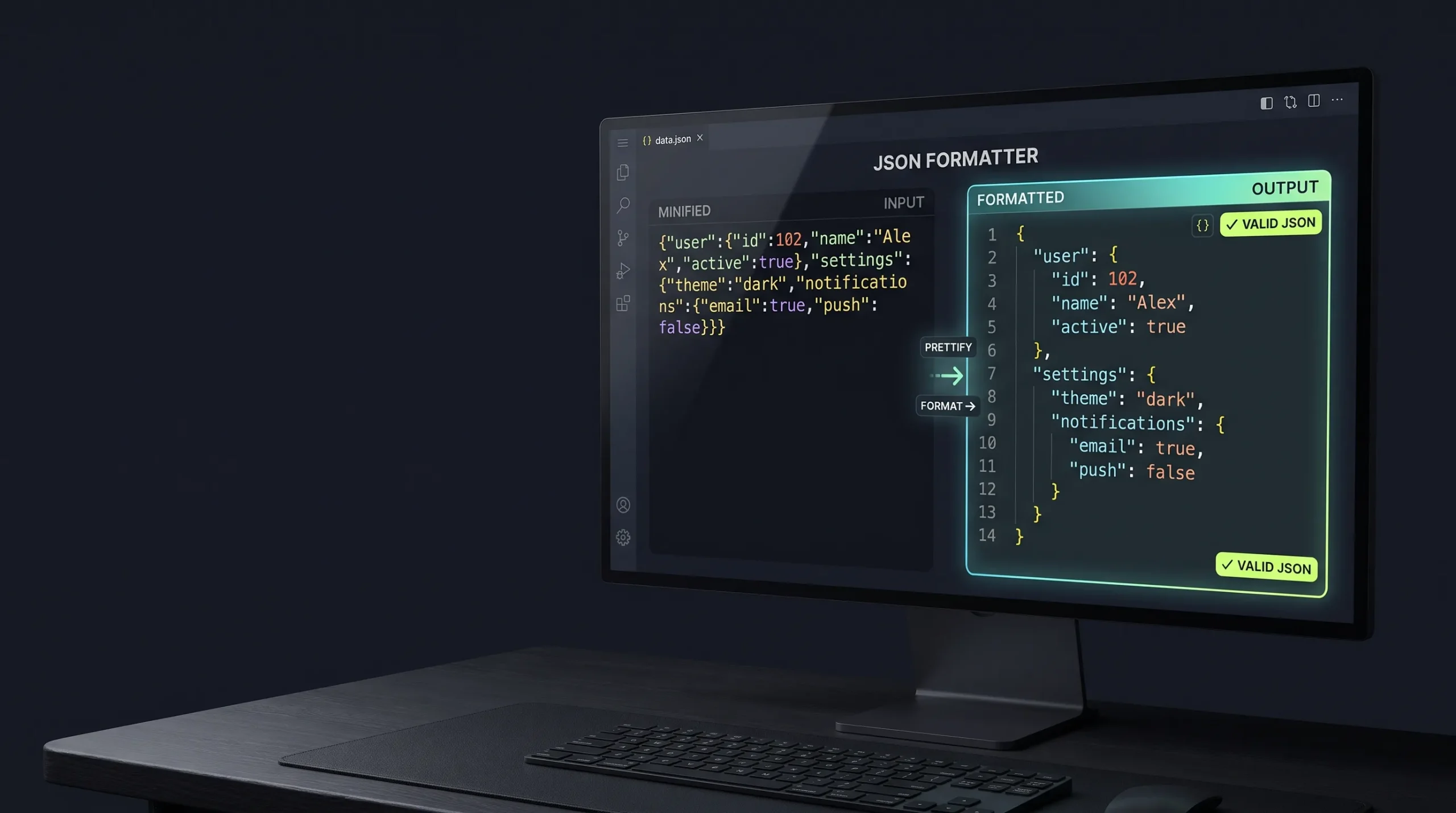
Once the JSON is valid, you can use the JSON Formatter to organize it into a readable structure.
Formatting does not repair every invalid document, so validate the input before relying on the formatted output.
A Simple JavaScript Function for Safe JSON Parsing
When working with API responses or user-provided JSON, error handling makes your application more reliable.
Here is a reusable function:
function parseJSONSafely(input) {
  if (typeof input !== "string") {
    return {
      success: false,
      error: "Input must be a string."
    };
  }

  if (input.trim() === "") {
    return {
      success: false,
      error: "JSON input is empty."
    };
  }

  try {
    const data = JSON.parse(input);

    return {
      success: true,
      data: data
    };
  } catch (error) {
    return {
      success: false,
      error: error.message
    };
  }
}

const result = parseJSONSafely('{"name":"Alex"}');

if (result.success) {
  console.log("Parsed data:", result.data);
} else {
  console.error("JSON error:", result.error);
}
This function checks that the input is a non-empty string, attempts to parse it, and returns either the parsed value or an error message.
It does not automatically repair malformed JSON, and it does not verify whether the data matches your application’s expected schema. Those are separate tasks.
How to Prevent JSON Parse Errors in Future Projects
Repeated parsing errors often point to weaknesses in how an application creates, receives, or validates data.
A few development habits can prevent many of these problems:
Use JSON.stringify() for serialization. Do not manually construct JSON strings when you already have a JavaScript object.
Validate external input. Treat API responses, uploaded files, and user-submitted data as untrusted until checked.
Check HTTP responses. Confirm the request succeeded and the server returned the expected content type before parsing.
Avoid double parsing. Know whether your variable contains raw JSON text or an already-parsed value.
Handle empty responses. Some API endpoints intentionally return no content.
Keep useful error logs. Record the relevant status code and a safe, limited sample of the response when debugging. Avoid logging passwords, access tokens, or private customer information.
Validate data structure separately. Valid JSON does not automatically mean the data contains the properties or types your application requires.
For a broader explanation of checking JSON syntax before sending API requests, see our guide: How to Validate JSON Before Sending an API Request.
Frequently Asked Questions
What is a JSON parse error?
A JSON parse error occurs when a parser cannot convert the supplied text into a valid JSON value. It may be caused by incorrect syntax, incomplete data, or receiving something other than JSON.
How do I fix an unexpected token in JSON?
Start by inspecting the character and position mentioned in the error. Check whether the input is actually JSON, then look for invalid quotes, trailing commas, missing brackets, or unexpected HTML.
Why am I getting Unexpected token < in JSON?
This commonly happens when an application expects JSON but receives an HTML page. Check the API endpoint, HTTP status, redirect behavior, and response content type.
Why does JSON.parse say Unexpected end of JSON input?
The input may be empty, incomplete, or missing a closing bracket, brace, or quotation mark. Check the original response or file before attempting to parse it again.
Does JSON allow single quotes?
No. Standard JSON requires double quotes around property names and string values. Single-quoted strings are allowed in JavaScript, but not in standard JSON.
Does JSON support comments?
No. Standard JSON does not support line or block comments. If comments are required, use a compatible format and parser such as JSONC or JSON5.
Can a JSON formatter fix invalid JSON?
A formatter can make valid JSON easier to read. Some tools also offer repair features, but formatting and validation are different operations. Always check whether the final result is valid JSON.
What is the difference between JSON.parse() and JSON.stringify()?
JSON.parse() converts JSON text into a JavaScript value. JSON.stringify() converts a JavaScript value into JSON text.
Is valid JSON always valid API data?
No. A document can follow JSON syntax but still contain missing fields, incorrect data types, or values that violate an API’s expected structure. Syntax validation and schema validation solve different problems.
Final Thoughts
A JSON parse error does not always mean that your JSON document contains a missing comma or quotation mark. Sometimes the actual problem is an unexpected server response, an empty body, or an attempt to parse data that is already in JavaScript object form.
The most effective way to debug these issues is to inspect the original input, understand the error message, and identify where the data stopped matching the expected format.
For everyday development, validate your JSON before using it, format it when readability becomes a problem, and check API responses before parsing them.
You can start with the JSON Validator and JSON Formatter available on The Awais Ali.