HTTP 401, 403, 404, and 500 Errors Explained: How to Find and Fix Them
You send an API request expecting a successful response. Instead, the server returns an error. You try again, change a parameter, and send another request. The result is exactly the same.
The frustrating part is that an HTTP error does not always tell you what went wrong inside your application.
A 401 response might mean your authentication credentials are missing. A 403 response can indicate that your account is not permitted to perform an operation. A 404 may point to an incorrect endpoint, while a 500 suggests that something went wrong while the server was processing the request.
These responses are not interchangeable. Treating them as if they were the same can waste time and lead to unnecessary code changes.
In this guide, we’ll investigate four HTTP errors that developers frequently encounter: 401, 403, 404, and 500. You’ll learn what each response means, how to diagnose its cause, and what to inspect before changing your application code.
What Are HTTP Status Codes?
HTTP status codes are numerical responses sent by a server to communicate the result of a client’s request.
When a browser, mobile application, or backend service communicates with a server, the response contains a status code along with any response headers and optional content.
HTTP status codes are part of the HTTP standard, which defines how clients and servers communicate. You can explore the complete status code reference in MDN’s HTTP response status codes documentation or consult the official RFC 9110 HTTP Semantics specification for their technical definitions.
Status codes are divided into five groups:
| Code range | Category | General meaning |
|---|---|---|
| 1xx | Informational | The request is still being processed |
| 2xx | Successful | The request was successfully received and handled |
| 3xx | Redirection | Another action or destination is required |
| 4xx | Client errors | The request cannot be fulfilled because of an issue associated with it |
| 5xx | Server errors | The server failed to fulfill an apparently valid request |
For example, a successful API request might return 200 OK, while a request for a resource that does not exist might return 404 Not Found.
You can inspect these responses using your browser’s developer tools, an API client, or a command-line utility such as cURL.
Understanding the status code is the first step. The next step is investigating the request and response that produced it.
1. Understanding the 401 Unauthorized Error
A 401 Unauthorized response indicates that the request lacks valid authentication credentials for the requested resource.
Despite its name, this response is generally about authentication rather than permission.
Imagine an application that retrieves customer information from a protected API. The endpoint requires an access token, but the application sends the request without one.
The server may respond with:
HTTP/1.1 401 Unauthorized
Content-Type: application/json

{
  "error": "unauthorized",
  "message": "Authentication credentials are required."
}
The request reached the server, but the server could not establish the required authenticated identity.
Common reasons for a 401 response
Missing authentication token
The application may have forgotten to include the access token in its request headers.
Expired access token
Some authentication systems issue tokens that remain valid only for a limited period. Once the token expires, the application may need to obtain a replacement.
Incorrect API key
A typo, outdated key, or incorrect environment variable can prevent the server from recognizing the supplied credentials.
Incorrect authentication format
An API may expect a bearer token but receive a different authentication scheme or malformed header.
For example, a bearer-token request commonly looks like this:
GET /api/customers HTTP/1.1
Host: api.example.com
Authorization: Bearer YOUR_ACCESS_TOKEN
Accept: application/json
How to troubleshoot a 401 error
- Check whether the endpoint requires authentication.
- Confirm that the application is sending the required authorization header.
- Verify that the token or API key belongs to the correct environment.
- Check the token’s expiration and refresh process.
- Confirm that the authentication scheme matches the API documentation.
- Inspect the server’s authentication logs if you control the API.
Never paste real access tokens, passwords, or private API keys into public debugging tools or screenshots.
Important distinction: A 401 does not necessarily mean the user entered an incorrect password. The issue could be an expired token, missing header, or a problem in the application’s authentication flow.
2. Understanding the 403 Forbidden Error
A 403 Forbidden response means the server understood the request but refuses to fulfill it.
This is different from a 401 response.
With a 401 response, the server is indicating that valid authentication is missing or unavailable. With a 403 response, the server is refusing access to the requested resource or operation.
Consider an application where a signed-in user can view customer records but only administrators can delete them.
The user sends a deletion request and receives:
HTTP/1.1 403 Forbidden
Content-Type: application/json

{
  "error": "forbidden",
  "message": "You do not have permission to perform this action."
}
The user may be authenticated successfully, but their account does not have the required permission.
Common reasons for a 403 response
Insufficient user permissions
The account may be authenticated but lack the role or permission required for the operation.
Restricted API access
An API provider may limit certain endpoints to specific subscriptions, accounts, or application permissions.
Server access rules
Web servers, firewalls, or security systems may reject requests based on configured access rules.
IP restrictions
Some services allow API requests only from approved IP addresses. A request from an unapproved network may be denied.
File and directory permissions
On self-hosted applications, incorrect filesystem permissions or server configuration can prevent access to resources.
How to troubleshoot a 403 error
Start by identifying whether the restriction comes from the application, API provider, or web server.
Then check:
- Whether the authenticated account has the required role.
- Whether the API key or token has the necessary scopes.
- Whether the endpoint is available under your subscription.
- Whether IP restrictions or firewall rules are blocking the request.
- Whether server-level access permissions are configured correctly.
- Whether the API documentation specifies additional requirements.
Do not solve a permission error by automatically granting administrator access to every account. Fix the specific authorization rule that is preventing the intended operation.
3. Understanding the 404 Not Found Error
A 404 Not Found response means the server cannot find the requested resource.
This error can appear on ordinary website pages as well as API endpoints.
For example, your application may send a request to:
GET /api/v1/products/125 HTTP/1.1
Host: api.example.com
But the resource may not exist, or the application may be calling the wrong endpoint.
The server could respond:
HTTP/1.1 404 Not Found
Content-Type: application/json

{
  "error": "not_found",
  "message": "The requested resource could not be found."
}
Common reasons for a 404 response
Incorrect endpoint
The application may be using the wrong URL or API route.
For example:
/api/product/125instead of:
/api/products/125A small difference in a route can cause the request to reach a location that does not exist.
Incorrect resource identifier
The endpoint may be valid, but the requested product, user, or record may have been deleted or may never have existed.
Changed URL structure
A website owner may rename a page, change a permalink, or move content without handling the old address.
Incorrect HTTP method or route configuration
The server may not have a matching route for the requested method and path. Depending on the application, an unsupported method may instead produce a 405 Method Not Allowed response.
Rewrite or routing problems
On websites using frameworks or content management systems, incorrect rewrite rules or routing configuration can send valid requests to the wrong destination.
How to troubleshoot a 404 error
- Copy the requested URL and inspect every part of it.
- Check the base API URL and version number.
- Compare the endpoint with the provider’s official documentation.
- Confirm that the resource identifier is correct.
- Check whether the resource still exists.
- Verify the HTTP method and route configuration.
- Inspect server logs to determine whether the request reached the intended application.
For WordPress websites, also check permalink settings, rewrite rules, and server configuration when multiple pages unexpectedly start returning 404 errors.
A useful distinction is that a website’s custom 404 page does not always mean the server returned a genuine HTTP 404 status. Check the actual response code rather than relying only on the message displayed in the browser.
4. Understanding the 500 Internal Server Error
A 500 Internal Server Error indicates that the server encountered an unexpected condition and could not complete the request.
Unlike a 404 response, which concerns a missing resource, a 500 response generally points towards a problem during server-side processing.
For example, a frontend application sends a request to create a new order. The request reaches the backend, but an unexpected exception occurs while processing it.
The server may return:
HTTP/1.1 500 Internal Server Error
Content-Type: application/json

{
  "error": "internal_server_error",
  "message": "An unexpected error occurred."
}
This response does not reveal the actual cause. The application logs are usually much more useful.
Common reasons for a 500 response
Unhandled application exceptions
A bug in the backend may cause the request to fail during execution.
Database problems
The application may be unable to connect to its database, execute a query, or complete a database transaction.
Missing environment variables
A deployment may be missing configuration values required by the application.
Third-party service failures
A backend may depend on another API or service that is unavailable or returning unexpected responses.
Resource limitations
Memory limits, process limits, or other infrastructure constraints may prevent the application from completing a request.
Incorrect server configuration
An application server, reverse proxy, or hosting configuration may be responsible for the failure.
How to troubleshoot a 500 error
A useful investigation begins with the server logs.
Follow this process:
- Reproduce the error using the same endpoint and request data.
- Record the exact time the error occurs.
- Check application logs for exceptions or stack traces.
- Inspect database connectivity and query errors.
- Verify environment variables and deployment configuration.
- Check whether dependent services are available.
- Review recent code changes and deployments.
- Test the endpoint again after correcting the underlying issue.
If you manage a production website, avoid displaying detailed stack traces or internal server paths to visitors. Keep technical error details in protected logs and return a safe, understandable response to the client.
5. How to Diagnose an HTTP Error Step by Step
Knowing what each status code means is useful, but an organized debugging process makes the investigation much faster.
Let’s use a practical example.
Suppose your JavaScript frontend sends a request to retrieve a list of products:
fetch("https://api.example.com/v1/products")
  .then(response => response.json())
  .then(data => {
    console.log(data);
  })
  .catch(error => {
    console.error("Request failed:", error);
  });
The first thing to understand is that fetch() does not automatically reject its promise when a server returns an HTTP error such as 404 or 500.
The request may complete successfully at the network level while the HTTP response itself indicates an error.
A better approach is to inspect the response status explicitly:
async function getProducts() {
  try {
    const response = await fetch(
      "https://api.example.com/v1/products"
    );

    const data = await response.json();

    if (!response.ok) {
      throw new Error(
        `HTTP ${response.status}: ${
          data.message || "Request failed"
        }`
      );
    }

    return data;

  } catch (error) {
    console.error("Unable to retrieve products:", error);
  }
}

getProducts();
This approach gives your application a clearer way to distinguish successful responses from HTTP errors.
It also makes debugging easier because the actual status code is included in the error message.
When working with JavaScript, remember that the Fetch API distinguishes between network failures and HTTP error responses. A response with a status such as 404 or 500 does not automatically reject the Fetch promise. You need to inspect properties such as response.ok and response.status yourself. Read MDN’s guide to using the Fetch API for additional examples.
A practical debugging checklist
When a request fails, investigate it in this order:
1. Inspect the request URL
Check the hostname, endpoint path, version, and query parameters.
2. Verify the HTTP method
Confirm whether the endpoint expects GET, POST, PUT, PATCH, or DELETE.
3. Inspect request headers
Check authorization, content type, and any required custom headers.
4. Validate the request body
If you are sending JSON, confirm that it is valid and matches the API’s expected structure.
You can use our JSON Validator to check JSON syntax before sending a request.
5. Read the response status and body
The status code provides a general category, while the response body may contain additional diagnostic information.
6. Inspect the server logs
If you control the backend, application logs can reveal exceptions and other details that are not included in the public response.
7. Reproduce the issue
Send the same request through another API client or a controlled test environment. This helps determine whether the issue comes from your frontend, backend, or the external service.
6. Check JSON Before Investigating the Backend
Not every failed API request is caused by authentication or server configuration.
Sometimes the problem is simply an incorrectly structured request body.
For example, this JSON is invalid:
{
  "name": "Wireless Keyboard",
  "price": 45.99,
  "available": true,
}
The trailing comma after true makes the JSON invalid.
A corrected version is:
{
  "name": "Wireless Keyboard",
  "price": 45.99,
  "available": true
}
Before spending time investigating your backend, make sure the request body is valid.
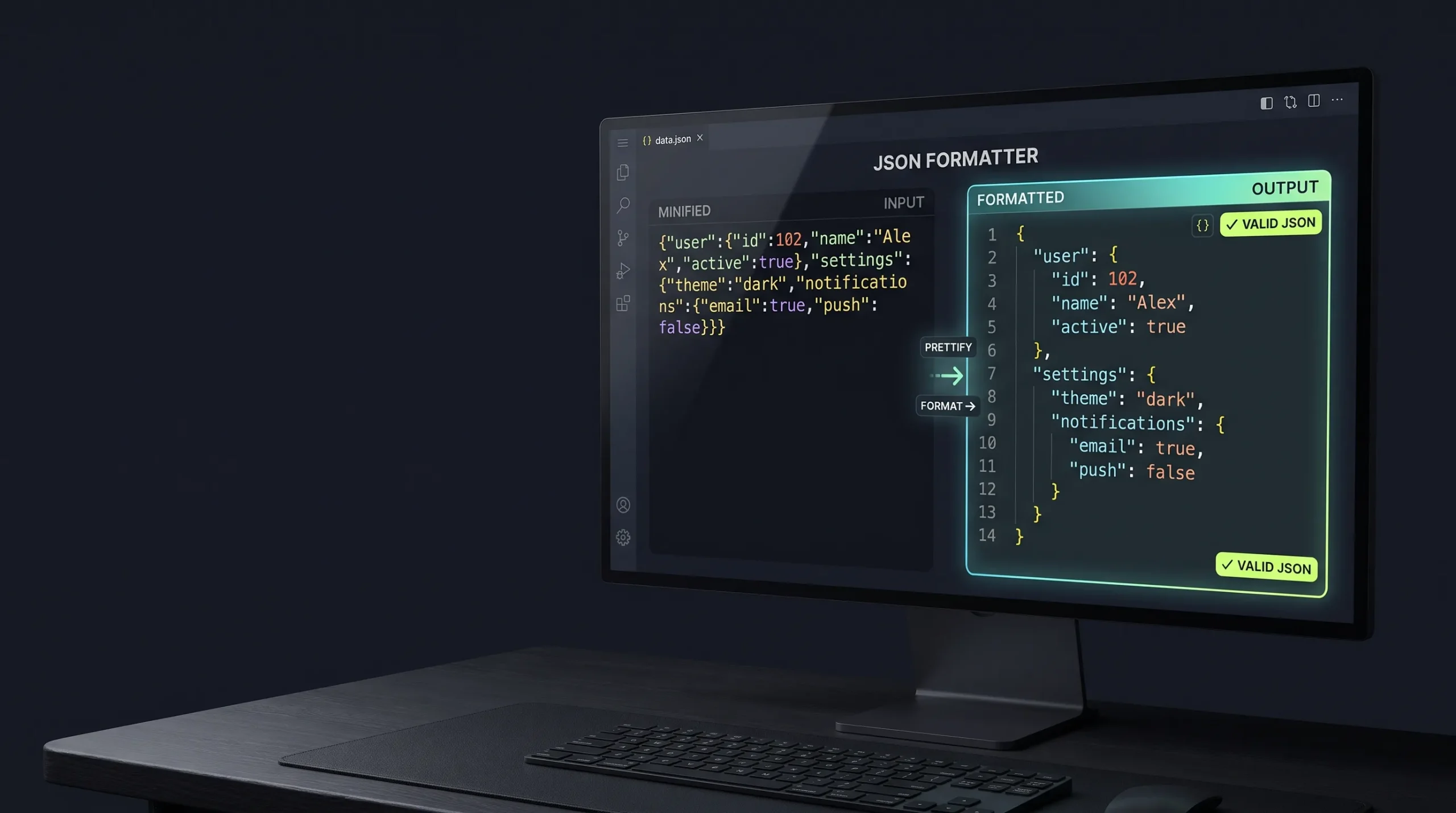
You can use these free tools:
A formatted JSON document is easier to inspect, especially when a request contains nested objects or arrays.
If you want a deeper explanation, read our guide on how to validate JSON before sending an API request.
Remember that valid JSON does not guarantee a successful API request. The data may still violate the API’s validation rules or business requirements.
7. Understand URL Parameters When Debugging Requests
A request may fail even when the endpoint itself is correct.
One possible reason is an incorrectly constructed query string.
For example:
https://api.example.com/search?product=wireless keyboardThe space in the parameter value should be encoded correctly when constructing the URL.
In JavaScript, the URLSearchParams API can handle query parameters safely:
const params = new URLSearchParams({
  product: "wireless keyboard",
  category: "electronics"
});

const url = `https://api.example.com/search?${params}`;

console.log(url);
This produces a properly serialized query string.
If you need to inspect encoded values manually, use our URL Encoder and Decoder.
For API debugging, always compare the final URL sent by your application with the endpoint documented by the API provider.
JavaScript developers can use the built-in URLSearchParams interface to construct and read query strings without manually encoding individual parameter values. The MDN URLSearchParams reference explains how to add, retrieve, update, and remove URL parameters.
8. What Is the Difference Between 401, 403, 404, and 500?
These four status codes can appear similar when all you see is a failed request, but they point towards different areas of investigation.
| Status | Meaning | First thing to investigate |
|---|---|---|
| 401 | Authentication is missing or invalid | Credentials and tokens |
| 403 | Access is refused | User permissions and access rules |
| 404 | Requested resource is not found | URL, route, and resource ID |
| 500 | Server encountered an unexpected problem | Backend logs and server processing |
A simple way to remember them:
- 401: The server cannot establish the required authenticated identity.
- 403: The server refuses the requested access.
- 404: The requested resource cannot be found.
- 500: Something unexpected went wrong while the server handled the request.
This distinction helps you choose the right debugging direction instead of changing unrelated parts of your application.
9. Frequently Asked Questions
Is a 401 error the same as a 403 error?
No. A 401 response generally indicates that valid authentication credentials are missing or unavailable. A 403 response indicates that the server refuses access to the requested resource or operation.
Why am I getting a 404 error when my API endpoint exists?
The endpoint may exist, but the request could be using the wrong method, path, API version, or resource identifier. Check the exact URL and compare it with the API documentation.
Does a 500 error always mean the server is broken?
A 500 response indicates an unexpected server-side failure, but it does not identify the exact cause. The problem could involve application code, database operations, configuration, or another dependency.
Can invalid JSON cause an HTTP 500 error?
It can contribute to a server error if the application handles malformed input incorrectly. However, a well-designed API should generally validate the request and return an appropriate client-error response, often 400 Bad Request, rather than exposing an internal failure.
How can I check the HTTP status code of an API request?
You can inspect the response in browser developer tools, use an API testing client, or send a request using cURL. In JavaScript, check the response.status property.
What is the difference between a 404 and a 410 response?
A 404 response indicates that a resource cannot currently be found. A 410 Gone response indicates that the resource is no longer available and that the removal is considered intentional.
Should I retry a failed API request?
It depends on the status code and the operation. Temporary server errors may justify a retry with a reasonable delay. Repeating a 401, 403, or 404 request without correcting the underlying problem usually will not help. For operations that change data, such as creating payments or orders, retries must also account for duplicate actions.
Final Thoughts
An HTTP error is a useful diagnostic signal, but the status code is only the beginning of the investigation.
A 401 response directs your attention towards authentication. A 403 points towards access restrictions. A 404 requires checking the requested resource and route. A 500 means you should investigate what happened during server-side processing.
Instead of changing code randomly, inspect the request, validate its data, read the response, and follow the evidence towards the actual problem.
If you work with APIs regularly, keeping your request URLs, headers, and JSON payloads organized can make troubleshooting much easier.
Explore the free developer tools on The Awais Ali to validate JSON, format API data, and encode or decode URL values before sending requests.