How to Format JSON for Easier Reading
JSON is one of the most common ways applications exchange structured data. You may encounter it when working with APIs, configuration files, web applications, or data exported from another service.
The problem is that JSON is not always easy to read.
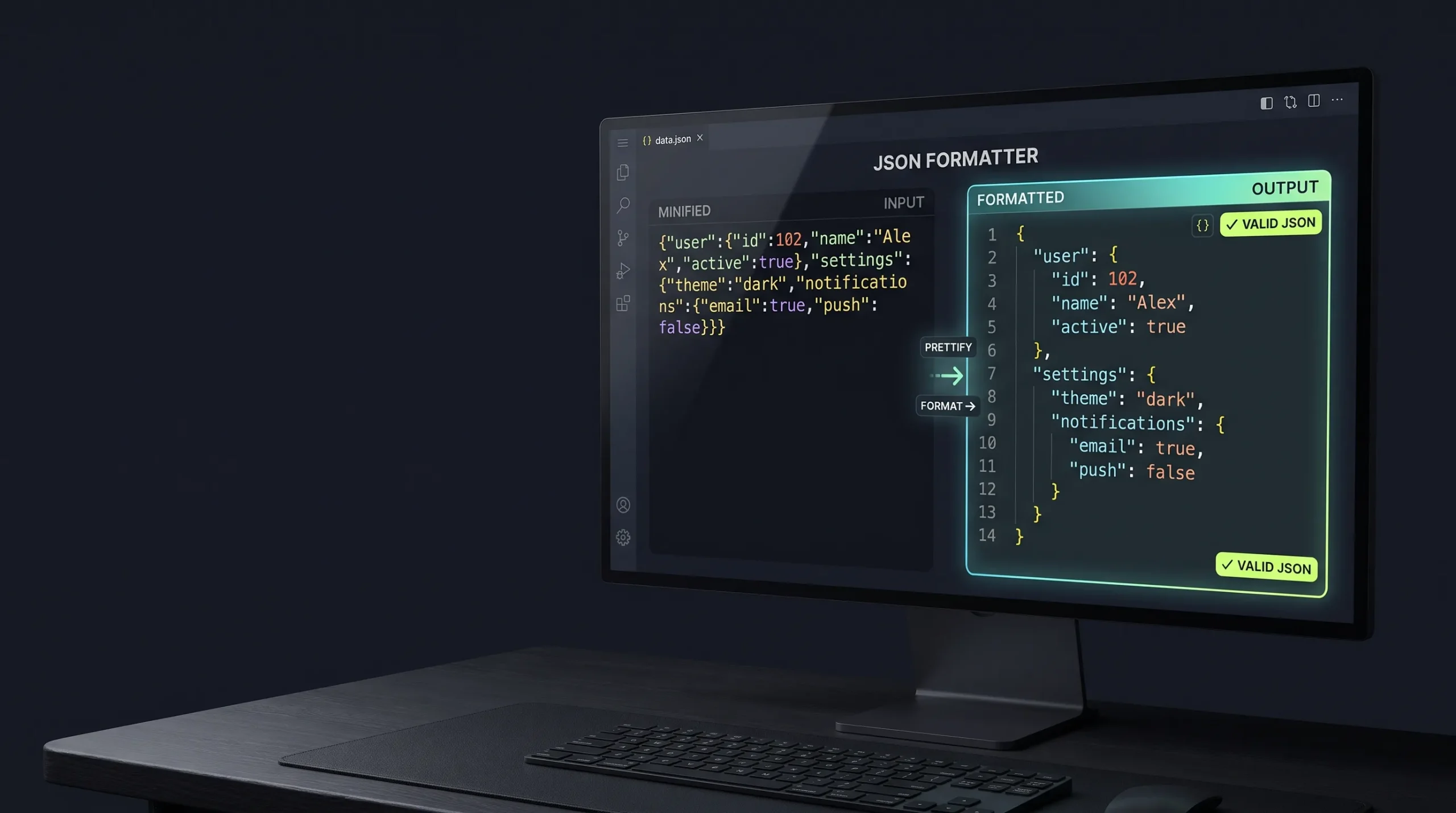
A response containing several nested objects and arrays can become difficult to inspect when everything appears on one line. Formatting makes the structure visible by adding indentation and line breaks without changing the underlying data.
This guide explains how to format JSON, understand its structure, and avoid common mistakes.
What Does JSON Formatting Mean?
JSON formatting, often called pretty printing, is the process of displaying JSON with consistent indentation and line breaks.
Consider this compact JSON:
{"name":"Awais","role":"Developer","skills":["WordPress","JavaScript","Flutter"]}The same data can be formatted as:
{
  "name": "Awais",
  "role": "Developer",
  "skills": [
    "WordPress",
    "JavaScript",
    "Flutter"
  ]
}
The values have not changed. Only the presentation is different.
How to Format JSON Online
You can format JSON using a browser-based formatter.
- Copy the JSON data you want to inspect.
- Open the JSON Formatter on The Awais Ali.
- Paste the JSON into the input area.
- Run the formatting action.
- Review the indented output.
- Copy the formatted result if it is correct.
For JSON that may contain syntax errors, use a validator as well. Formatting and validation are related but different operations.
How to Format JSON in JavaScript
JavaScript includes the JSON.stringify() method, which can produce an indented JSON string.
Example:
const user = {
  name: "Awais",
  role: "Developer",
  skills: ["WordPress", "JavaScript", "Flutter"]
};

const formatted = JSON.stringify(user, null, 2);

console.log(formatted);
The third argument controls indentation. In this example, 2 requests two spaces.
The MDN documentation for JSON.stringify() explains the method and its parameters.
How to Read Nested JSON
Nested JSON contains objects or arrays inside other objects or arrays.
Example:
{
  "customer": {
    "name": "Sara",
    "address": {
      "city": "Lahore",
      "country": "Pakistan"
    }
  },
  "orders": [
    {
      "id": 101,
      "status": "paid"
    },
    {
      "id": 102,
      "status": "pending"
    }
  ]
}
Start from the outermost object. Identify its keys, then inspect each nested object or array separately.
In this example:
customercontains customer details.addressis nested insidecustomer.ordersis an array containing two order objects.- Each order has an ID and a status.
Indentation helps you see which values belong together.
JSON Formatting vs JSON Validation
These operations solve different problems.
Formatting improves readability by adding indentation and line breaks.
Validation checks whether the input follows JSON syntax rules.
For example, this is invalid JSON:
{
  "name": "Awais",
  "role": "Developer",
}
The trailing comma after "Developer" is not allowed in standard JSON.
A formatter cannot make every invalid input valid automatically. Check the syntax first if the input produces an error.
You can also use the JSON Validator to check JSON syntax.
Common JSON Formatting Mistakes
- Leaving a trailing comma after the final item.
- Using single quotes instead of double quotes around strings.
- Forgetting a closing brace or bracket.
- Mixing up arrays and objects.
- Editing values accidentally while trying to format the data.
- Assuming formatted JSON is automatically valid.
Frequently Asked Questions
Does formatting JSON change its data?
A normal pretty-print operation changes whitespace and presentation, not the data values. Still, compare important data before replacing a production file.
What is pretty-printed JSON?
Pretty-printed JSON is formatted with indentation and line breaks to make its structure easier to read.
Can I format JSON in JavaScript?
Yes. You can use JSON.stringify(value, null, 2) to produce a readable JSON string with two-space indentation.
Why is my JSON formatter showing an error?
The input may contain invalid syntax, such as a missing comma, unmatched bracket, unquoted key, or trailing comma.
Is JSON formatting the same as minifying?
No. Formatting adds whitespace for readability, while minification removes unnecessary whitespace to reduce the size of the JSON text.
Final Thoughts
Formatting JSON makes structured data easier to inspect, debug, and share with other developers.
Use consistent indentation, understand the difference between objects and arrays, and validate the syntax whenever the input may be incorrect.
For a quick way to make JSON more readable, try the JSON Formatter on The Awais Ali.