How to Convert JPG to WebP Without Losing Quality
Images are an important part of almost every website. They make product pages more attractive, help explain information, and make content easier to understand. But large image files can also increase page weight and consume more bandwidth.
If your website contains hundreds of JPG images, converting suitable images to WebP can be one way to reduce their file sizes without making them visibly worse.
In this guide, you’ll learn how to convert JPG to WebP, how the format works, what happens to image quality during conversion, and how to choose the right settings for your website.
You can also use our free JPG to WebP Converter to convert an image directly in your browser.
What Is WebP?
WebP is an image format developed by Google for delivering images more efficiently on the web. It supports both lossy and lossless compression, as well as transparency and animation.
Unlike simply changing a file extension, converting an image to WebP involves encoding its image data into a different format.
The main reason website owners use WebP is that it can often produce smaller files than JPEG at a similar visual quality.
According to Google’s WebP documentation, lossy WebP images can be around 25–34% smaller than comparable JPEG images at equivalent quality. Actual results depend on the image and compression settings.
You can read more in Google’s official WebP documentation.
Why Convert JPG to WebP?
There are several practical reasons to convert JPG images to WebP, particularly when managing a website.
1. Reduce image file size
A large collection of high-resolution images can make a webpage unnecessarily heavy.
WebP can often reduce the size of photographic images while retaining a similar visual appearance. Smaller files can also reduce the amount of data visitors need to download.
For example, imagine a JPG product image that is 500 KB. After conversion, the WebP version might be 350 KB. That’s a 30% reduction.
This is an illustrative example, not a guaranteed conversion result. Your actual file size will depend on the original image and selected quality settings.
2. Improve website loading performance
When a browser loads a webpage, it needs to download the resources required to display it, including images.
Reducing image file sizes can reduce the amount of data transferred. This is particularly useful for visitors using mobile connections or devices with limited bandwidth.
However, changing image formats alone does not guarantee a faster website. Hosting performance, caching, JavaScript, CSS, image dimensions, and other factors also matter.
3. Use a modern image format
WebP supports features that make it useful for different website images, including lossy compression, lossless compression, transparency, and animation.
For most modern websites, it is a practical format to consider for product photos, blog images, banners, and other raster graphics.
4. Reduce bandwidth usage
If your website receives regular traffic, image downloads contribute to its overall bandwidth consumption.
Smaller images can reduce the data transferred when visitors browse your pages. The savings become more meaningful when a website contains many images or receives substantial traffic.
How to Convert JPG to WebP Online
You don’t need advanced image-editing software to convert a JPG image into WebP.
Follow these steps:
Step 1: Open the JPG to WebP Converter
Visit the free JPG to WebP Converter on The Awais Ali.
Step 2: Upload your JPG image
Select the JPG or JPEG image you want to convert from your device.
Choose an original image that has sufficient resolution for its intended use. Converting a low-resolution image will not restore missing detail.
Step 3: Choose the conversion settings
If the converter provides a quality setting, select an appropriate value.
For photographic images, you can begin with a moderately high quality setting and adjust it after checking the result.
If the image contains text, sharp edges, or fine details, inspect it carefully. Compression artifacts can be more noticeable around these elements.
Step 4: Convert the image
Start the conversion process and allow the tool to generate the WebP file.
Step 5: Download and inspect the result
Download the converted image and compare it with the original.
Check the following:
- Is the image still sharp?
- Are colors and details acceptable?
- Is the file size smaller?
- Are transparent areas preserved, if applicable?
- Does the image display correctly on your website?
If the output looks noticeably worse or is larger than the original, try a different quality setting.
How to Convert JPG to WebP Without Losing Quality
The phrase “without losing quality” needs some clarification.
WebP supports both lossy and lossless compression. Lossy compression can discard some image information to reduce file size. Lossless compression preserves the original pixel values, but it may not always produce a smaller file.
If you want to preserve the original image data as closely as possible, use lossless WebP when your converter supports it.
If your priority is a smaller file for a website, lossy WebP may be more suitable. The goal is to find a balance between file size and visual quality.
Here are a few practical recommendations:
| Image type | Suggested approach |
|---|---|
| Product photographs | Try lossy WebP and inspect details |
| Blog featured images | Use a balanced quality setting |
| Screenshots with text | Prefer lossless or carefully tested compression |
| Graphics with transparency | Use a WebP mode that preserves transparency |
| Images with fine details | Compare the output at its actual display size |
There is no single quality setting that works perfectly for every image. A photograph, a logo, and a screenshot have different compression requirements.
JPG vs WebP: What’s the Difference?
JPG and WebP are both commonly used for website images, but they work differently.
| Feature | JPG / JPEG | WebP |
|---|---|---|
| Lossy compression | Yes | Yes |
| Lossless compression | No | Yes |
| Transparency | No | Yes |
| Animation | No | Yes |
| Typical web use | Photographs | Photos, graphics, and animations |
| File size | Often larger at comparable quality | Often smaller at comparable quality |
JPG remains widely supported and useful, particularly for photographs and situations where an existing workflow depends on JPEG.
WebP offers additional compression options and supports transparency. It is a useful alternative when you want to optimize images for modern websites.
For a broader explanation of image formats, see the MDN image file type and format guide.
Does Converting JPG to WebP Improve SEO?
Converting images to WebP does not automatically improve your search rankings.
However, image optimization can support a better page experience by reducing unnecessary file sizes and helping pages deliver visual content more efficiently.
Consider these practices when optimizing website images:
- Use appropriate image dimensions instead of uploading unnecessarily large files.
- Choose a suitable format for each image.
- Compress images without making them visibly poor.
- Write descriptive, useful alt text.
- Use responsive images where appropriate.
- Lazy-load images that are below the initial viewport.
- Avoid lazy-loading the main image when it is needed immediately for the page’s initial display.
Image format is only one part of website performance. You should also evaluate loading behavior and page experience using tools such as Google PageSpeed Insights.
If you’re optimizing your website’s existing image library, read our guide on how to optimize images for websites for more practical techniques.
Common Mistakes When Converting JPG to WebP
Converting an image is straightforward, but a few mistakes can reduce the usefulness of the final result.
Using extremely low quality settings
A smaller file is not always a better file. Excessive compression can create visible artifacts, blurry edges, and distorted details.
Always check the converted image before publishing it.
Assuming every WebP image will be smaller
WebP does not guarantee a smaller file in every situation. Google’s documentation explains that certain combinations of source format and encoding settings can produce larger WebP files.
Compare the original and converted file sizes instead of assuming the conversion has saved space.
Changing the file extension manually
Renaming photo.jpg to photo.webp does not convert the image.
The file must actually be encoded in the WebP format. Otherwise, applications and browsers may fail to interpret it correctly.
Forgetting to update website image references
If you replace an image on an existing website, make sure the page points to the new file.
Also check image URLs in product galleries, CSS backgrounds, page builders, and other locations where images may be referenced.
Ignoring image dimensions
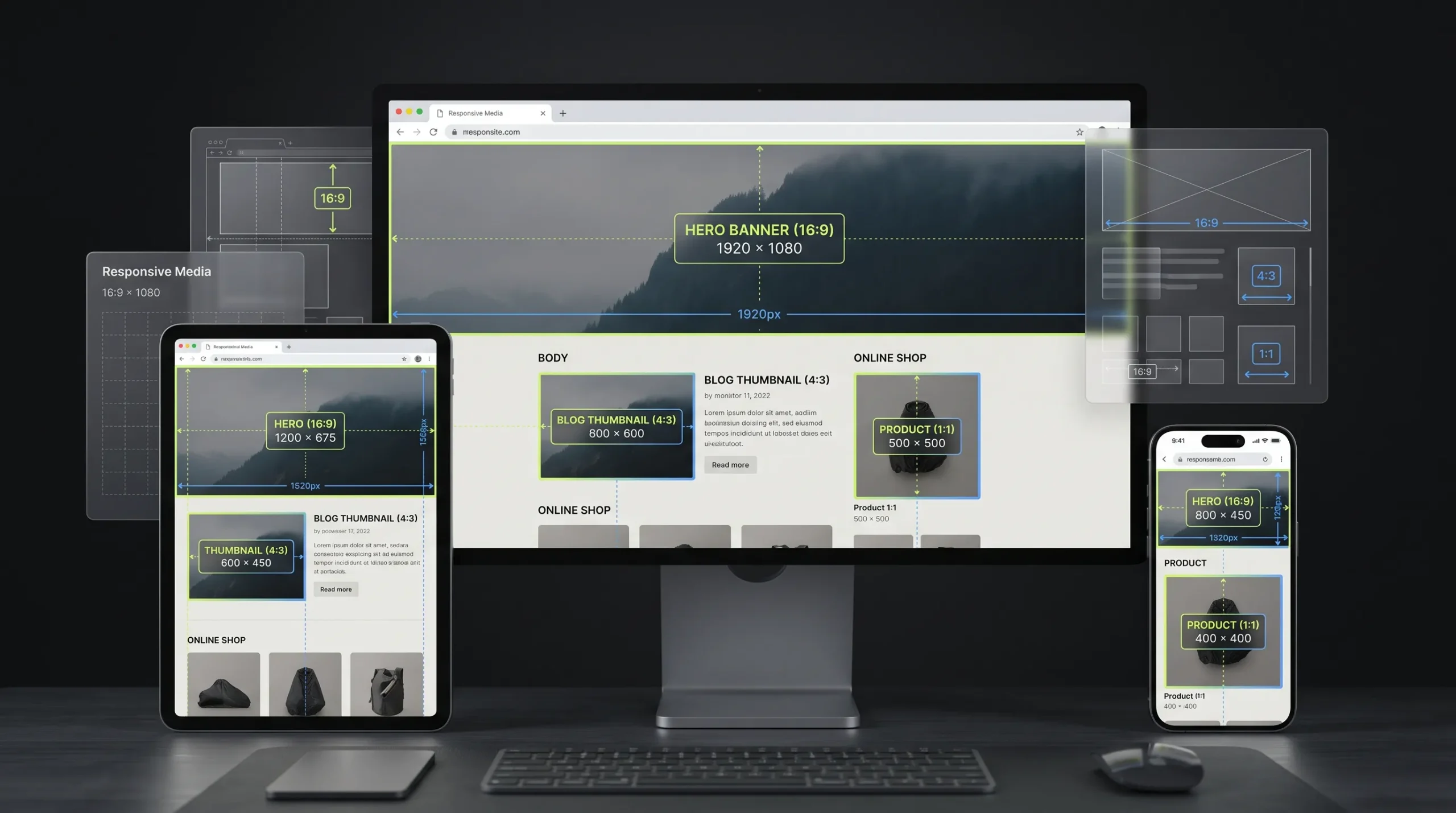
A 4000-pixel-wide image may be unnecessary if it appears in a 600-pixel-wide content area.
Converting the format does not fix oversized dimensions. Resize images when appropriate before or during optimization.
Frequently Asked Questions
Can I convert JPG to WebP for free?
Yes. You can use a free online image converter to convert JPG images into WebP. Try the JPG to WebP Converter on The Awais Ali.
Does converting JPG to WebP reduce quality?
It depends on the compression mode. Lossy WebP can reduce image quality slightly, while lossless WebP preserves pixel values. Always inspect the output before using it.
Is WebP better than JPG for websites?
WebP can be a better choice when you want efficient compression and support for transparency. JPG remains useful for compatibility with older workflows and applications. The right choice depends on your image and website requirements.
Can I convert multiple JPG images to WebP?
That depends on the converter you use. Some tools support batch conversion, while others process one image at a time. Check the tool’s available features before uploading multiple files.
Does WebP support transparent backgrounds?
Yes. WebP supports transparency, including an alpha channel. This makes it useful for certain graphics and images that would otherwise need a format such as PNG.
Will WebP images work in modern browsers?
WebP is supported by major modern browsers, including Chrome, Edge, Firefox, and Safari. If your website needs to support older or unusual browser environments, consider providing a fallback format.
Final Thoughts
Converting JPG images to WebP can help reduce image file sizes and make your website’s image delivery more efficient. But the best result isn’t simply the smallest possible file. It’s an image that loads efficiently while still looking good to visitors.
Start with a suitable quality setting, compare the output with the original, and check the image at the size it will actually appear on your website.
If you want to convert an image without installing desktop software, try the free JPG to WebP Converter on The Awais Ali.