How to Validate JSON Before Sending an API Request
An API request can fail before your application gets the response you expect. Sometimes the endpoint is correct, the server is running, and your authentication details are valid, but the request body contains JSON that the receiving system cannot parse.
A missing quotation mark, an extra comma, or an incorrectly placed bracket can be enough to cause a problem.
Validating JSON before sending it helps you catch these mistakes earlier. It also makes debugging easier because you can separate formatting errors from issues involving authentication, API permissions, or business logic.
This guide explains how to validate JSON, identify common syntax mistakes, test a payload locally, and prepare request data for an API.
What does JSON validation mean?
JSON validation means checking whether a piece of text follows the rules of JavaScript Object Notation, the data format commonly used to exchange structured information between applications.
Consider this request payload:
{
  "customer": "Sara",
  "email": "sara@example.com",
  "active": true
}
This is valid JSON. Its property names and string values use double quotation marks, the Boolean value is written without quotes, and the object is correctly enclosed in braces.
Now consider this version:
{
  "customer": "Sara",
  "email": "sara@example.com",
  "active": true,
}
The final comma makes the object invalid under the JSON grammar. A parser will reject it even though the intended data is easy to understand.
That is the purpose of syntax validation: checking the actual structure rather than guessing what the author intended.
There is an important distinction, however. Valid JSON does not automatically mean a valid API request. The payload may be syntactically correct but still contain a missing required field, an incorrect data type, or a value that the API does not accept.
Why validate JSON before making an API request?
Imagine a checkout application sending an order to a backend service. The request contains the customer’s details, purchased items, and payment amount.
If the payload is malformed, the server may be unable to read it. If the payload is valid JSON but uses the wrong field names, the server may reject it for a completely different reason.
Validating the payload first can help you:
- Detect syntax mistakes before they reach the server.
- Reduce unnecessary requests while debugging.
- Identify whether the problem is in the data or the API response.
- Inspect nested objects and arrays more easily.
- Share a reproducible request example with another developer.
Validation is especially useful when a request body is generated dynamically from a form, database record, frontend application, or automation workflow.
Step 1: Inspect the JSON structure
Start by checking whether your data follows the basic rules of JSON.
JSON supports six value types: objects, arrays, strings, numbers, Booleans, and null.
| Value type | Example |
|---|---|
| Object | {"name": "Sara"} |
| Array | ["basic", "pro"] |
| String | "hello" |
| Number | 42 |
| Boolean | false |
| Null | null |
Objects contain key-value pairs, while arrays contain ordered values. These structures can be nested to represent more complicated data.
For example, an order might contain a customer object and an array of items:
{
  "orderId": "ORD-1042",
  "customer": {
    "name": "Sara",
    "email": "sara@example.com"
  },
  "items": [
    {
      "productId": "P-101",
      "quantity": 2
    },
    {
      "productId": "P-205",
      "quantity": 1
    }
  ]
}
Before testing the request, check that every opening brace or bracket has a matching closing character and that commas separate items correctly.
Step 2: Check the JSON for syntax errors
Small punctuation mistakes are among the most common reasons a JSON parser fails.
Error 1: Using single quotes
Invalid:
{
  'name': 'Sara'
}
Correct:
{
  "name": "Sara"
}
JSON strings and property names must use double quotes.
Error 2: Leaving a trailing comma
Invalid:
{
  "name": "Sara",
  "role": "developer",
}
Correct:
{
  "name": "Sara",
  "role": "developer"
}
Remove the comma after the last property.
Error 3: Writing an unquoted string value
Invalid:
{
  "status": active
}
Correct:
{
  "status": "active"
}
Text values need double quotes. Numbers, Booleans, and null are written differently and should not be treated as strings unless the API expects a string.
Error 4: Using an unsupported value
Invalid:
{
  "createdAt": undefined
}
Correct, if the field is intended to contain no value:
{
  "createdAt": null
}
undefined is a JavaScript value, not a valid JSON value. Whether null is accepted by the API depends on its data requirements.
Error 5: Mismatched brackets
Invalid:
{
  "products": [
    "keyboard",
    "mouse"
  }
}
]
Correct:
{
  "products": [
    "keyboard",
    "mouse"
  ]
}
A parser can identify structural problems, but you still need to inspect the intended data to determine the correct fix.
Step 3: Use a JSON validator
You do not need to send every test payload to a live API. A JSON validator can check the syntax separately.
To validate a payload:
- Open the JSON Validator on this website.
- Paste your JSON into the input area.
- Run the validation check.
- If an error appears, inspect the reported position or message.
- Correct the issue and validate the payload again.
For example, paste this deliberately incorrect payload:
{
  "product": "Wireless Mouse",
  "price": 24.99,
  "inStock": true,
}
The trailing comma after true makes the JSON invalid. Removing that comma should resolve this particular syntax error.
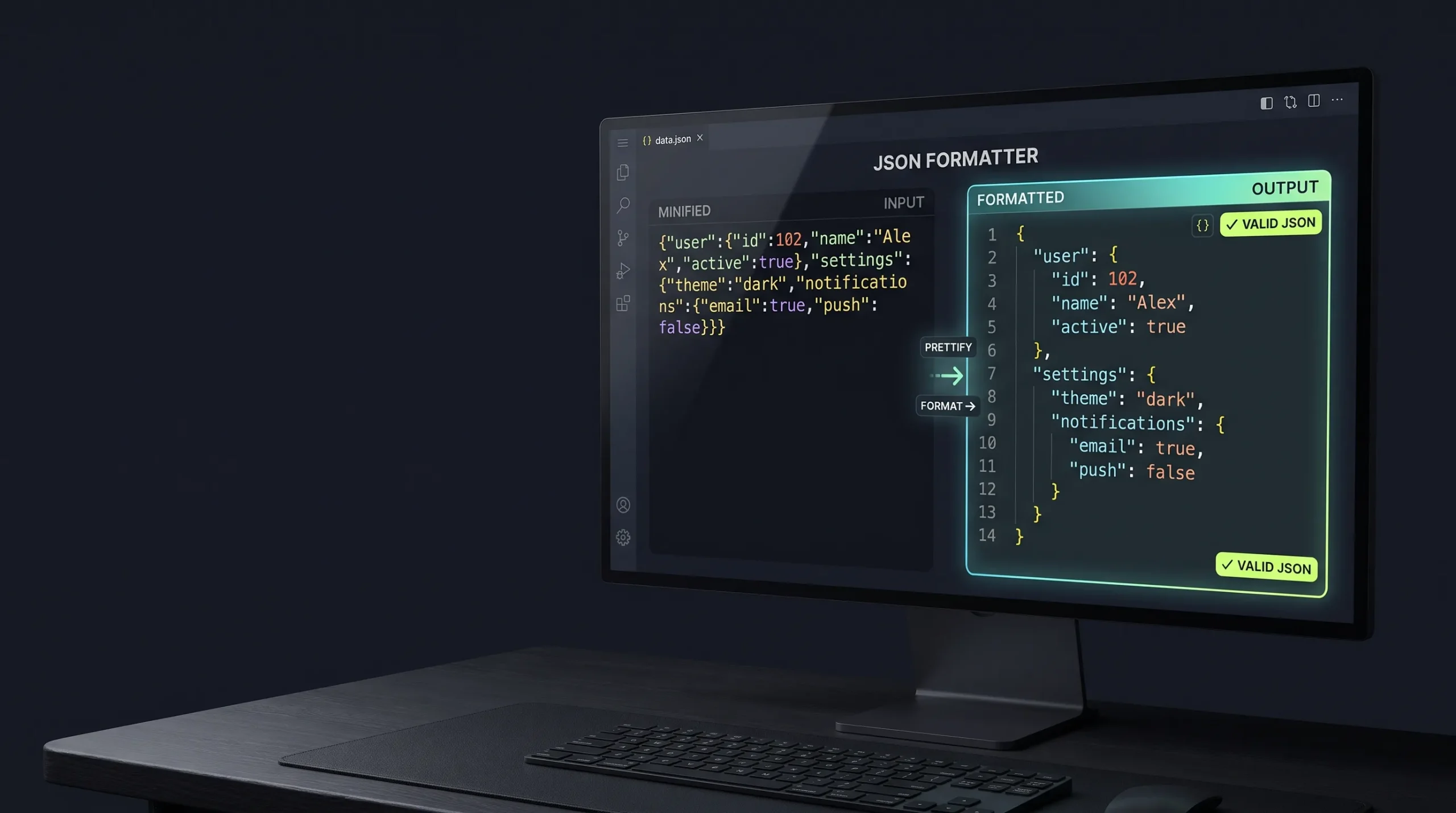
If you need to make a deeply nested payload easier to inspect after it passes validation, use the JSON Formatter to arrange it with consistent indentation.
A validator checks syntax. It does not necessarily verify that your endpoint exists, your credentials work, or your payload satisfies the API’s schema.
Step 4: Validate JSON locally with JavaScript
If you are developing a JavaScript application, you can use JSON.parse() to check whether a string contains valid JSON.
const payload = `{
  "product": "Wireless Mouse",
  "price": 24.99,
  "inStock": true
}`;

try {
  const data = JSON.parse(payload);
  console.log("Valid JSON:", data);
} catch (error) {
  console.error("Invalid JSON:", error.message);
}
When parsing succeeds, the result is a JavaScript value that your application can inspect or use. If the text is malformed, the catch block handles the parsing error.
This example validates syntax only. It does not confirm that price is positive, that product is present in the API’s database, or that inStock is an accepted field.
If your application already has a JavaScript object, remember that it is not the same thing as a JSON string. JSON.parse() is intended to parse JSON text. To serialize an object into JSON text, use JSON.stringify().
const order = {
  product: "Wireless Mouse",
  quantity: 2
};

const requestBody = JSON.stringify(order);

console.log(requestBody);
This is useful when preparing data for an HTTP request.
Step 5: Check the payload against the API requirements
Once the JSON passes syntax validation, compare it with the API documentation.
Suppose an endpoint expects this structure:
{
  "name": "Sara",
  "quantity": 2
}
Your payload might instead be:
{
  "name": "Sara",
  "quantity": "2"
}
Both examples are valid JSON, but the value of quantity has a different type. One is a number; the other is a string.
Depending on the endpoint’s rules, the second payload could be rejected or handled differently.
Before sending a request, confirm:
- Required property names and spelling.
- Expected data types.
- Whether a field can be omitted or set to
null. - Allowed values and numeric limits.
- The required nesting of objects and arrays.
- Whether additional properties are permitted.
For more complex APIs, a JSON Schema can describe the expected structure and constraints. Schema validation is a separate step from checking whether the text is valid JSON.
Step 6: Send the request with the correct headers
After the payload passes the necessary checks, make the API request.
For a typical JSON request using the Fetch API:
const payload = {
  name: "Sara",
  quantity: 2
};

async function createOrder() {
  try {
    const response = await fetch("/api/orders", {
      method: "POST",
      headers: {
        "Content-Type": "application/json"
      },
      body: JSON.stringify(payload)
    });

    const result = await response.json();

    if (!response.ok) {
      console.error("API returned an error:", result);
      return;
    }

    console.log("Order created:", result);
  } catch (error) {
    console.error("Request failed:", error);
  }
}

createOrder();
This example assumes the endpoint accepts JSON and returns a JSON response. Replace /api/orders with the actual endpoint and adapt the response handling to the API’s documented behavior.
Notice that JSON.stringify() converts the JavaScript object into JSON text, while the Content-Type header tells the server what format the request body uses.
A successful syntax check cannot guarantee a successful response. The server can still return an authentication error, a validation error, a missing-resource response, or another HTTP status.
How to troubleshoot JSON API errors
When a request fails, investigate the failure in a deliberate order instead of changing several parts of the request at once.
| What you observe | What to inspect |
|---|---|
| Parsing error before the request is sent | JSON syntax, quotation marks, commas, brackets |
| HTTP 400 response | Payload format and the API’s validation message |
| HTTP 401 or 403 response | Authentication, credentials, and permissions |
| HTTP 404 response | Endpoint path, API version, and resource URL |
| HTTP 415 response | Request Content-Type and supported media types |
| HTTP 5xx response | Server-side logs, service availability, and request details |
These are common diagnostic starting points, not universal rules. An API may use different status codes or return more specific error information.
If the response includes a detailed error message, read it before changing the payload. The server may identify a missing field or an invalid value even when the JSON syntax is correct.
Avoid sharing API keys, access tokens, passwords, or private customer information when posting request examples publicly. Replace sensitive values with safe placeholders before sharing logs or payloads.
Frequently asked questions
Does valid JSON mean my API request will work?
No. Valid JSON confirms that the text follows JSON syntax rules. The API can still reject the request because of missing fields, incorrect types, authentication, permissions, or business rules.
Can I validate JSON without sending a request?
Yes. A local parser or JSON validation tool can check syntax without contacting your API. You can use the JSON Validator on this site to identify malformed JSON before testing the endpoint.
Why does my API reject JSON that looks correct?
The payload may contain a subtle syntax issue, use the wrong data type, omit a required property, or fail the endpoint’s schema rules. Also check the request headers and the exact error returned by the server.
What is the difference between a JSON validator and a JSON formatter?
A validator checks whether the JSON is syntactically valid. A formatter changes its presentation, usually by adding indentation and line breaks. Formatting does not automatically fix every invalid payload or guarantee that the data meets an API’s requirements.
Should I validate JSON on the frontend or backend?
Both can be useful for different reasons. Frontend checks can provide quick feedback to users or developers, while backend validation is essential for protecting server-side operations. Never rely exclusively on client-side validation for data that the server must trust.
What tool should I use to debug JSON?
Start with a validator to find syntax problems. Use a formatter when the structure is difficult to read, then compare the payload with the API documentation. If syntax and schema checks pass, investigate the HTTP response, headers, endpoint, and authentication.
Final thoughts
A failed API request does not always mean the endpoint or server is broken. Sometimes the problem begins with the data being sent.
Validate the JSON first, compare its structure with the API’s requirements, and then inspect the HTTP response if the request still fails. Keeping these checks separate makes it easier to identify the actual cause rather than guessing at a fix.
Use the JSON Validator to check a payload before testing it, and the JSON Formatter when you need a clearer view of nested data.